
Biotuner
Explore scales, spectra, rhythms, and moving voices with Biotuner and core nodes.
Five focused experiments using shipped nodes and standard viewers. Every calculation remains visible in the patch, with relevant controls beside the results.
Start here
Enable Biotuner and Signal; recipes 3 and 4 also use Audio. Each download opens in one Explore tab with a patch, two viewers, and controls.
Peaks and tuning calculations use existing nodes. Recipe 2 includes a reusable FmSignal source. Recipe 5 includes PaletteView for labeled swatches and gradients. Recipe 3 includes RhythmView, a reusable display for any rhythm grid, with optional playhead and gate inputs.
Open the first recipe ↓ Bundle setup →
Meet the nodes
Use the node pictures to find the inputs and outputs. Each experiment points to a recipe you can build on.
Choose a smaller scale
Try it. Change mode/n_steps from 5 to 3 and compare the remaining ratios.
Good to know
The output keeps a fixed width. Empty positions are NaN when the input has fewer degrees.
Inputs: input: ARRAY
Outputs: reduced: ARRAY
Compare intervals in a scale
Try it. Open matrix as an image and compare dyad_similarity with consonance under matrix/function.
Good to know
These scoring methods have different scales. Compare results within one method.
Inputs: input: ARRAY
Outputs: matrix: ARRAY · metricPerStep: ARRAY · metric: ARRAY
Turn peaks or tuning ratios into an RGB palette.
Try it. In recipe 5, compare two methods on the same tuning, then adjust Interval or BaseHz.
Good to know
Choose tuning for ratios and peaks for frequencies in Hz. Leave calibration at none unless you have fitted calibration data.
Inputs: input: ARRAY · amps: ARRAY
Outputs: rgb: ARRAY · lightness: ARRAY · chroma: ARRAY · hue: ARRAY · hex: STRING
Shape a set of partials
Try it. Add this node to the linked recipe to explore another way of reading its musical data. Compare one setting at a time.
Good to know
partials is in hertz; pitch uses volts per octave. Normalized brightness needs a range mapping before it controls a filter cutoff.
Inputs: input: ARRAY · gate: ARRAY
Outputs: partials: ARRAY · amplitudes: ARRAY · weights: ARRAY · brightness: ARRAY · spread: ARRAY · harmonicity: ARRAY · pitch: ARRAY · gain: ARRAY · gate: ARRAY · voices: ARRAY
Hold a scale until a suitable one arrives
Try it. Add this node to the linked recipe to explore another way of reading its musical data. Compare one setting at a time.
Good to know
foraging/rate sets the minimum time between accepted changes. Reset to accept the next candidate as a fresh start.
Inputs: input: ARRAY
Outputs: tuning: ARRAY · similarity: ARRAY · changed: ARRAY
Play notes through a tuning
Try it. Add this node to the linked recipe to explore another way of reading its musical data. Compare one setting at a time.
Good to know
This node needs note events as well as a tuning. See its documentation for the notes array format; a ratio list alone does not play notes.
Inputs: input: ARRAY · notes: ARRAY
Outputs: voices: ARRAY · pitch: ARRAY · gate: ARRAY · velocity: ARRAY · freq: ARRAY
Save a tuning as a synth preset
Try it. Add this node to the linked recipe to explore another way of reading its musical data. Compare one setting at a time.
Good to know
Writing creates files in the chosen folder. Load the result in Vital and supply notes to hear it. A periodic wavetable cannot retain every inharmonic pitch exactly.
Inputs: input: ARRAY · partials: ARRAY · amplitudes: ARRAY · signal: ARRAY
Outputs: path: STRING · files: TABLE
Find the strongest frequencies
Try it. In recipe 02, compare peaks with the known 8, 12, and 16 Hz components of the practice signal.
Good to know
Input is a waveform with sample-rate metadata. amps contains power in dB, and missing peaks are padded with NaN.
Inputs: input: ARRAY
Outputs: peaks: ARRAY · amps: ARRAY
Build a scale from peaks
Try it. Compare peaks_ratios and harmonic_tuning under tuning/method.
Good to know
Input frequencies are in hertz; output degrees are ratios. diss_curve also requires the aligned amps output from Peaks.
Inputs: input: ARRAY · amps: ARRAY
Outputs: tuning: ARRAY
Measure the relationships between peaks
Try it. Add this node to the linked recipe to explore another way of reading its musical data. Compare one setting at a time.
Good to know
Higher harmsim means greater harmonic similarity; higher tenney means greater ratio complexity. They move on different scales.
Inputs: input: ARRAY
Outputs: harmsim: ARRAY · tenney: ARRAY · cons: ARRAY · subharmTension: ARRAY
Find harmonic structure across a spectrum
Try it. Add this node to the linked recipe to explore another way of reading its musical data. Compare one setting at a time.
Good to know
Supply at least sample rate ÷ spectrum/precision samples. peakValues are harmonicity scores, so do not use them as Peaks.amps.
Inputs: input: ARRAY
Outputs: spectrum: ARRAY · freqs: ARRAY · peaks: ARRAY · peakValues: ARRAY · matrix: ARRAY · harmonicity: ARRAY · complexity: ARRAY · activation: ARRAY · power: ARRAY · waveform: ARRAY · analysis: TABLE
See one analysis window as a dashboard
Try it. Add this node to the linked recipe to explore another way of reading its musical data. Compare one setting at a time.
Good to know
Connect HarmonicSpectrum.analysis so all panels describe the same window. Refresh the channel list after changing inputs.
Inputs: analysis: TABLE
Outputs: dashboard: ARRAY
Explore spectral matches to element line lists
Try it. Add this node to the linked recipe to explore another way of reading its musical data. Compare one setting at a time.
Good to know
These are mathematical matches between spectra. A match does not identify an element in a recording or establish its physical presence.
Inputs: input: ARRAY · amps: ARRAY
Outputs: elements: TABLE · scores: ARRAY · ranked: STRING · categories: STRING
Use peaks to shape an audio filter
Try it. Add this node to the linked recipe to explore another way of reading its musical data. Compare one setting at a time.
Good to know
peaks and amps are audio ports. Keep peak values in hertz: shift raises the filter centres by octaves. Add Gain and AudioOut when you are ready to listen.
Inputs: input: AUDIO · peaks: AUDIO · amps: AUDIO
Outputs: out: AUDIO
Make pulse patterns from ratios
Try it. Add this node to the linked recipe to explore another way of reading its musical data. Compare one setting at a time.
Good to know
Rows may have different lengths. steps tells you the length before padding.
Inputs: input: ARRAY
Outputs: patterns: ARRAY · steps: ARRAY
Put several rhythms on a shared grid
Try it. Compare poly/method values euclid and iso. Watch coincidences for steps where voices meet.
Good to know
poly/cycleCap limits the shared grid. The node may simplify ratios to fit that limit.
Inputs: input: ARRAY
Outputs: voices: ARRAY · coincidences: ARRAY · labels: STRING · cycle: ARRAY
Move through a rhythm at a tempo
Try it. Change player/bpm from 90 to 120 and watch step and gate.
Good to know
Gate values are controls, not sound. player/length changes how much of each step stays on.
Inputs: input: ARRAY
Outputs: gate: ARRAY · step: ARRAY · phase: ARRAY
Move between ratios over time
Try it. Compare sequence/direction values forward and ping-pong. Turn sequence/running off to pause.
Good to know
transition carries endpoints and timing together. Connect it to HarmonicMorph.transition.
Inputs: clock: ARRAY
Outputs: transition: ARRAY
Move smoothly between chords
Try it. Pause RatioSequence to inspect a chord, then adjust morph/stretch slightly above and below 1.
Good to know
The harmonic output includes ratios, weights, and phases. Use nodes that understand that structure, such as HarmonicVoices.
Inputs: a: ARRAY · b: ARRAY · ampsA: ARRAY · ampsB: ARRAY · phasesA: ARRAY · phasesB: ARRAY · mix: ARRAY · transition: ARRAY
Outputs: harmonic: ARRAY
Keep pitch and gain changes together
Try it. Watch pitch and gain while the sequence runs. Set sound/level to 0 and notice that pitches remain while gains become zero.
Good to know
The voice count stays fixed, including silent components. These arrays need an audio control route to make sound.
Inputs: input: ARRAY
Outputs: pitch: ARRAY · gain: ARRAY
Patch recipes
Shape a scale
Build a tuning by stacking an interval. Compare its reduced scale with a pairwise similarity matrix.
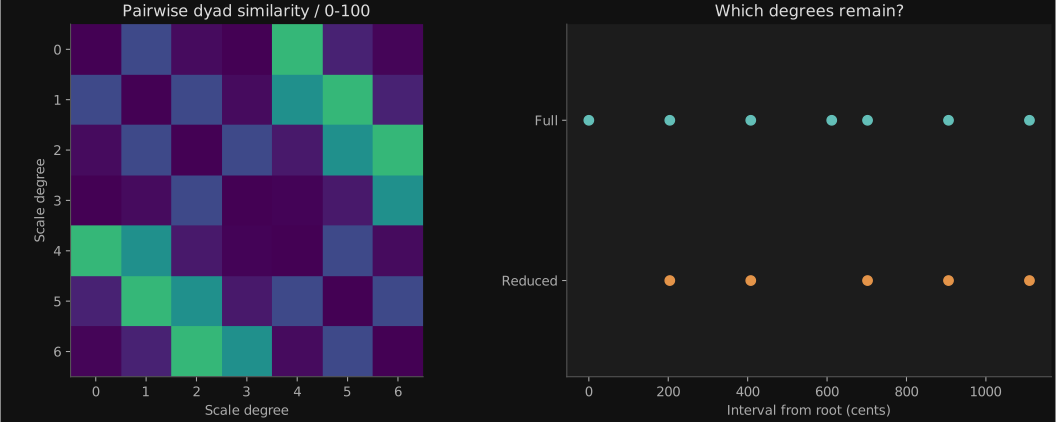
- Start with Interval at 1.5, a perfect fifth. Read the full and reduced ratios beside the matrix.
- Change Interval slightly and watch how the relationships change.
- Change KeepDegrees, keeping it no larger than ScaleSize.
Constant.outTuning.inputTuning.tuningTuningReduction.inputTuning.tuningTuningMatrix.inputTuning.tuningBioColors.inputWhat to look for. Tuning folds stacked intervals into an octave. TuningReduction keeps selected degrees; the matrix scores each pair on the same 0-100 dyad-similarity scale.
Compare intervals 1.5 and 1.3333 with the same scale size. Expand BioColors in the patch to see the palette generated from the tuning.
ScaleSize counts generator steps, not a fixed equal-tempered division. The Text panel reads the actual node outputs; it does not calculate another tuning.
Change the spacing, change the tuning
Explore how frequency modulation changes spectral peaks and the ratios derived from them.
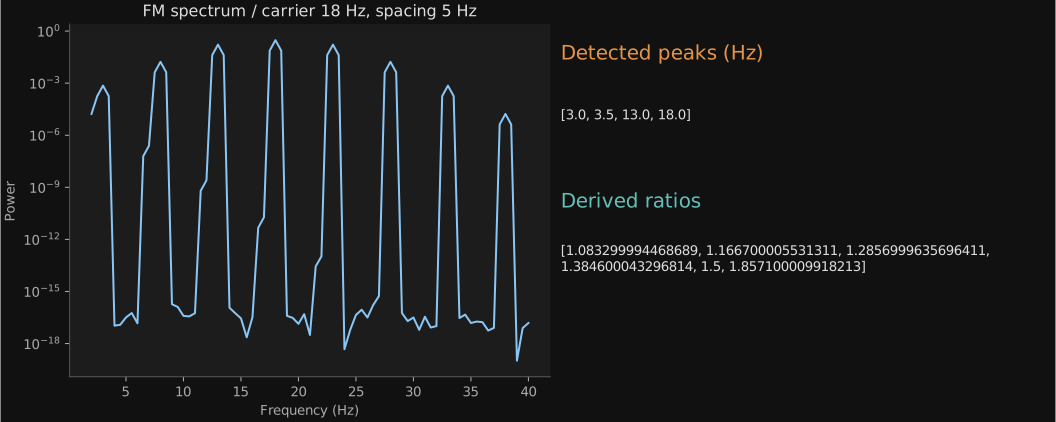
- Allow four seconds for the spectrum to settle. The carrier stays at 18 Hz.
- With ModulationDepth at 1.2, compare PeakSpacing at 4, 5, and 7 Hz. Wait four seconds after each change.
- Read the detected frequencies and tuning ratios beside the spectrum.
FmSignal.outBuffer.inputBuffer.outPsd.inputBuffer.outPeaks.inputPeaks.peaksTuning.inputPeaks.ampsTuning.ampsWhat to look for. PeakSpacing controls the modulation frequency: sidebands appear around the carrier at multiples of this spacing. Changing spacing changes their frequency ratios, rather than simply transposing the spectrum.
Set ModulationDepth to 0 for a single sine wave, then return to 1.2. Depth changes sideband strengths, so Peaks may select a different set of frequencies.
Peaks measures the strongest peaks between 2 and 40 Hz at 0.5 Hz precision. Ratios may change in steps, and fewer peaks may be present than PeakCount. FmSignal is an embedded, reusable FM source; the analysis uses existing nodes.
Hear the interlocking rhythms
Hear the first rhythm as a low pulse and the other lanes as a brighter voice, while following their patterns on screen.
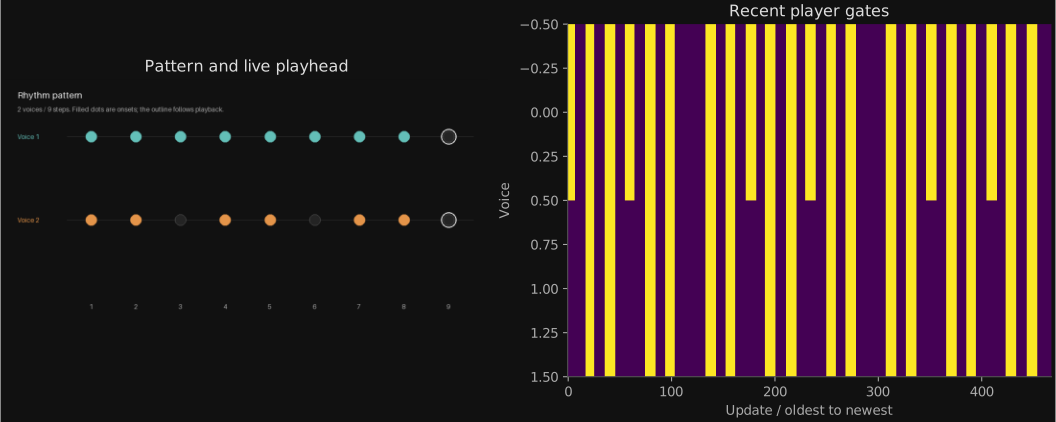
- Follow the first lane in RhythmView while listening to the low sine pulse. The other lanes trigger the higher triangle voice.
- Change LowTone and HighTone independently. Use LowPitch and HighPitch to separate their registers, and each Decay to shape its attack into a short tick or longer tone.
- Change Interval and Pattern to reshape the rhythm. Tempo and Subdivision set the pace; Running pauses playback and Volume sets the level.
Constant.outTuning.inputTuning.tuningPolyrhythm.inputPolyrhythm.voicesRhythmPlayer.inputRhythmPlayer.gateBuffer.inputPolyrhythm.voicesRhythmView.patternsRhythmPlayer.stepRhythmView.stepRhythmPlayer.gateRhythmView.gatesRhythmPlayer.gateSelect.inputSelect.outSignalIn.inputOsc.outGain.inputGain.outMixdown.inputRhythmPlayer.gateSelect2.inputSelect2.outSignalIn2.inputOsc2.outGain2.inputGain2.outMixdown.inputMixdown.outAudioOut.inputWhat to look for. Select separates the first gate lane from the remaining lanes. Each group has its own SignalIn, Env, Osc, and Gain, so its timbre can change independently. Mixdown combines both groups for AudioOut.
Keep the rhythm fixed. Compare a low sine with a high square, then swap their tones. Listen for the moments when both groups strike together.
AudioOut uses the default output device; select another in its parameters if needed. Pattern changes can create more lanes: all lanes after the first share the high voice settings. Keep GateLength at 0.5 or above at the fastest settings.
Hear one voice move
Listen to a three-note chord: two notes stay fixed while the middle note travels through a ratio sequence.
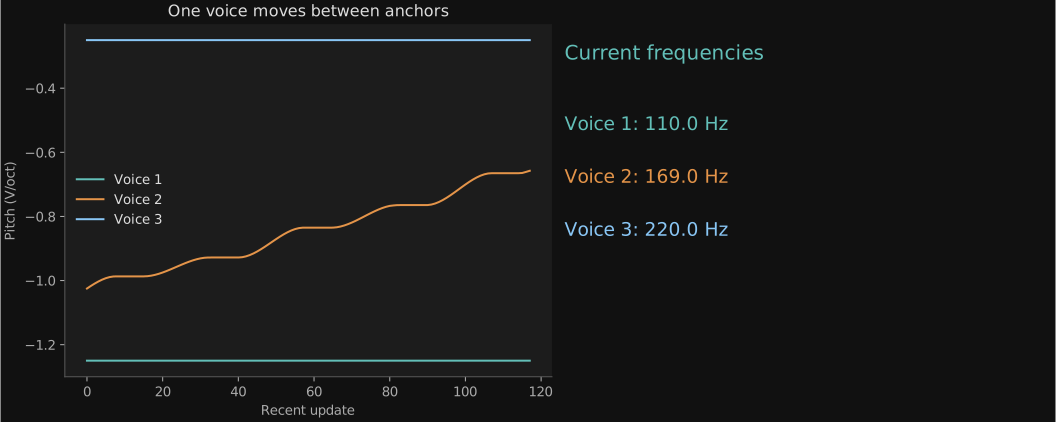
- Raise Volume gently from zero to hear the chord. Follow the moving trace beside the two steady pitch traces.
- Set Glide to 0 for immediate steps, then 0.9 for smooth movement. StepSeconds sets how long each step lasts.
- Try sine for a pure tone or triangle for more harmonics. Room adds reverb, Width spreads the voices, and Octave moves the whole chord up or down.
RatioSequence.transitionHarmonicMorph.transitionHarmonicMorph.harmonicHarmonicVoices.inputHarmonicVoices.pitchBuffer.inputHarmonicVoices.pitchSignalIn.inputHarmonicVoices.gainSignalIn2.inputOsc.outGain.inputGain.outMixdown.inputMixdown.outReverb.inputReverb.outAudioOut.inputWhat to look for. RatioSequence supplies both endpoint chords and their transition progress through one cable. HarmonicMorph needs only its transition input here; leave its other inputs disconnected. HarmonicVoices supplies the actual pitch and gain for each oscillator voice.
Set Room to 0 and listen to the changing intervals clearly. Then add a little reverb. Running holds the current chord when switched off; use Volume to silence it.
The patch opens muted. SignalIn.out controls Osc.osc.pitch, and SignalIn2.out controls Gain.gain.gain through parameter references. AudioOut uses your default output device. No custom synthesis node is needed.
One tuning, different colors
Compare two ways of turning the same tuning into color. Watch the swatches change together, then freeze the motion and inspect the differences.
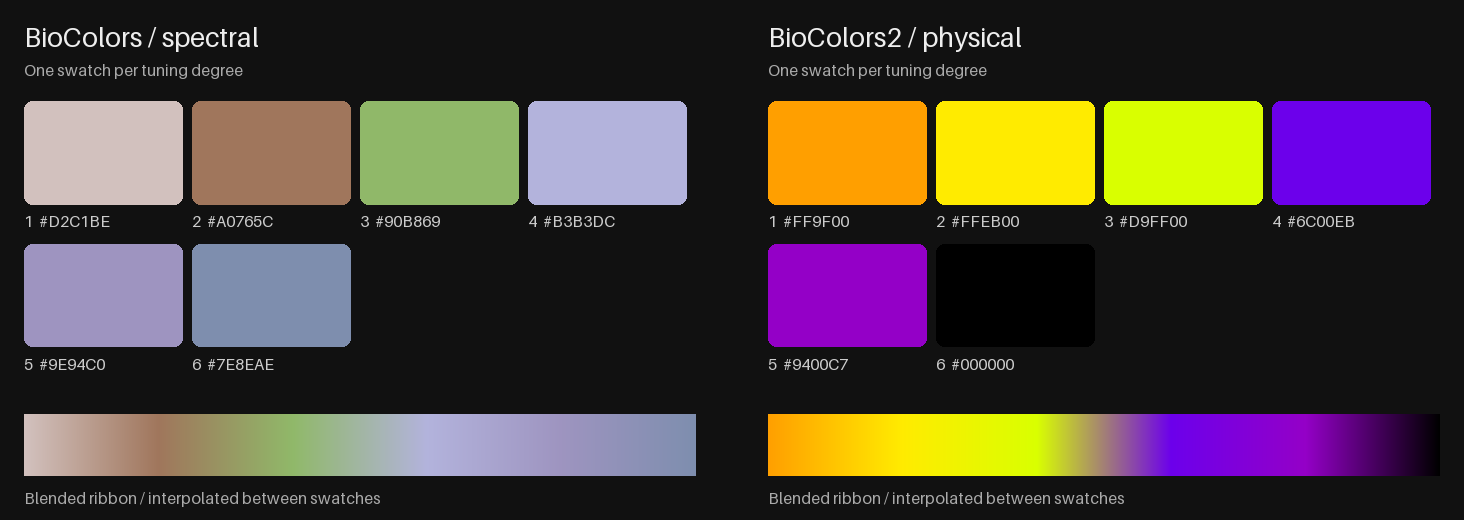
- Start with spectral on the left and physical on the right. Both BioColors nodes receive the same tuning and base frequency.
- Set Motion to 0 to hold a tuning. Change Interval and BaseHz separately, watching which colors respond.
- Compare spectral with tonotopic, then consonance with tenney. Restore Motion to 0.08 for a gentle sweep; Speed controls its pace.
Constant.outTuning.inputTuning.tuningBioColors.inputTuning.tuningBioColors2.inputBioColors.rgbPaletteView.inputBioColors2.rgbPaletteView2.inputWhat to look for. The numbered swatches show exact BioColors RGB values, with their hex codes. The ribbon blends those swatches to show how the palette might look as a gradient. The same degree occupies the same position in both panels.
First compare frequency-based methods: spectral and physical. Then compare interval-based methods: consonance, harmonic, and tenney. Keep all other controls fixed so you can see the effect of the mapping alone.
These are alternative mappings, not a unique natural color for a sound. BaseHz supplies the frequency of ratio 1; some methods respond more to relative intervals. Calibration stays at none. PaletteView only draws the output colors and performs no color mapping.
Working practice
Keep frequencies and ratios distinct
Peaks are measured in hertz. Tuning degrees are relative to a root. Check which one a node expects before connecting it; both use array ports, so the cable colour alone cannot tell you.
Use one source for related changes
Branch a tuning to several views, or share HarmonicMorph’s output with sound and geometry. This keeps each view tied to the same musical change.